Использование Authorization Manager для делегирования доступа к виртуальным машинам Hyper-V

Подробное описание того, как правильно распределить доступ к системе виртуализации Hyper-V на основе ролей Authorization Manager, обзор его возможностей, терминология.

www.techdays.ru

Рубрика: Hyper-V | 2 комментария

Валерий Кипелов ВИА Лейся песня Мама

Валерий Кипелов ВИА Лейся песня Мама

Рубрика: клип | Оставить комментарий

Как получить бесплатную лицензию и ключ на VMware ESXi 5.0 (vSphere Hypervisor). Пошаговое руководство.

Для тех пользователей, кто только начинает свое знакомство с технологиями виртуализации, первым серверным гипервизором в большинстве случаев становится VMware ESXi. В этой статье мы приведем пошаговую инструкцию по получению лицензионного ключа на беcплатную платформу виртуализации VMware ESXi, которая официально называется VMware vSphere Hypervisor.

Для начала объясним некоторые детали про бесплатный VMware ESXi. Бесплатная платформа vSphere Hypervisor может быть использована для любого количества серверов в вашей организации, в производственной среде. При этом:

1. Централизованно управлять хост-серверами ESXi вы не сможете — придется ходить на каждый сервер с помощью vSphere Client.

2. Лицензия на бесплатный vSphere Hypervisor позволяет вам иметь неограниченное количество процессоров на сервере, при этом общий объем сконфигурированной оперативной памяти виртуальных машин (vRAM) не может превышать 32 ГБ на одном сервере.

Чтобы убедиться во втором пункте, достаточно заглянуть в документ «VMware vSphere 5 Licensing, Pricing and Packaging White Paper» и найти там такие строчки:

VMware vSphere Hypervisor is a free product that provides a simple and easy way to get started with virtualization at no cost…Users
can remotely manage individual vSphere Hypervisor hosts using the vSphere Client. vSphere Hypervisor is entitled to 32GB of vRAM per server (regardless of the number of processors) and can be utilized on servers with up to 32GB of physical RAM.

Последняя строчка, кстати, говорит нам о том, что и на самом сервере не может быть более 32 ГБ оперативной памяти. Вообще говоря, приведенный выше документ рекомендуется хотя бы просмотреть перед использованием бесплатного vSphere Hypervisor.

Бесплатный ESXi 5.0 позволяет использовать следующие возможности:

  • Централизованное управление и мониторинг всех виртуальных машин хоста
  • Использование до 8 виртуальных процессоров для одной виртуальной машины (vCPU)
  • Использование расширенных техник по оптимизации памяти хоста: Transparent Page Sharing (TPS), Memory Compression, Memory Ballooning, Host Swapping
  • Использование функций «thin provisioning», что позволяет создавать виртуальные диски vmdk, растущие по мере наполнения их данными на хранилище
  • Использование общего хранилища, но только средствами политики одного пути (без multipathing)
  • Сетевой экран для хост-сервера VMware ESXi 5 (см. видео тут)
  • Поддержка проброса в виртуальную машину устройств USB 2.0 и 3.0
  • Графический интерфейс для редактирования количества виртуальных ядер на виртуальный процессор
  • Использование USB-устройств, подключаемых к ВМ со стороны клиента
  • Поддержка больших томов VMFS и RDM (до 64 ТБ) в VMFS 5 (однако ограничение на виртуальный диск в ~2 ТБ остается)
  • Поддержка EFI BIOS и гостевых ОС Mac OS 10.6
  • Поддержка смарт-карт для доступа к консоли виртуальных машин
  • Поддержка 3D-графики и Windows Aero
  • Использование интерфейсов PowerCLI и vCLI, но только в режиме «Read only»

В который раз отмечаем, что средства резервного копирования, такие как, например, Veeam Backup and Replication, работать с бесплатным VMware ESXi 5 не будут! Это прямо запрещено лицензией.

Теперь как, собственно, эту лицензию получить (она не ограничена по времени).

1. Первое, что мы делаем, это идем на страницу http://www.vmware.com/go/hcl/ и проверяем совместимость вашего сервера с VMware ESXi 5.

Если ваш сервер несовместим с ESXi — то лучше его туда не устанавливать. Хотя и на официально неподдерживаемом оборудовании ESXi тоже работает, хотя никаких гарантий никто не дает. Для поиска поддерживаемого оборудования по частям поищите по запросу «ESXi 5 Whitebox HCL», а также загляните сюда: http://www.vm-help.com//esx40i/esx40_whitebox_HCL.php и сюда: http://ultimatewhitebox.com/.

2. Далее идем на страницу http://www.vmware.com/go/get-free-esxi. Там необходимо создать учетную запись на вкладке «Create an Account»:

3. Далее заполняем регистрационную информацию (корпоративный ящик использовать необязательно) и соглашаемся с условиями пользовательского соглашения (EULA):

Нажимаем кнопку «Register».

4. Далее проматываем до «Option 2», где находится лицензионный ключ и ссылки на загрузку ISO-образов ESXi 5.

5. После загрузки ISO-образа записываем его на диск, или через iLO или что-то подобное подключаем ISO к серверу и устанавливаем VMware ESXi.

6. После установки vSphere Hypervisor открываем vSphere Client и соединяемся с сервером, после чего переходим на вкладку «Configuration», а затем в подкатегорию «Licensed features» категории «Software», где нажимаем кнопку «Edit»:

7. Нажимаем кнопку «Enter Key» и вбиваем полученный лицензионный ключ:

8. Убеждаемся, что хост лицензирован как VMware vSphere 5 Hypervisor:

И повторяем еще раз: бесплатный VMware ESXi 5, он же vSphere 5 Hypervisor, не имеет ограничений ни по количеству процессоров сервера, ни по количеству ядер в них, ни по количеству виртуальных машин. Все ограничения касаются оперативной памяти, о чем мы уже сказали в начале статьи.

www.vmgu.ru

Рубрика: *, *Windows | Оставить комментарий

Nesting Hyper-V with VMware Workstation 8 and ESXi 5

As Veeam moves forward and starts to become focused two virtualization platforms, I thought to myself now is the time to work out how I’m going to introduce Microsoft Hyper-V in my lab environment. I wanted to know if it could be virtualized running inside a VMware virtual machine of some sorts. Veeam has been very successful in presenting its solutions through the use of portable labs running for example on laptops nested under VMware Workstation. We would often have a nested ESX server, vCenter, DC and Veeam apps running on a single laptop and I wanted to know if Hyper-V could be thrown into the mix.

This post will function as a how-to guide and provide a step-by-step process to run Hyper-V virtual machines on either VMware Workstation 8 or ESXi 5.

For a long time, I was told it was impossible, and a few months ago, I heard a passing rumour that it would be possible when ESXi 5 came out. I’d also heard that ESXi 5 running on Intel Nehalem or Intel Core i7 was going to allow nested hypervisors to also contain running, nested 64bit virtual machines. So firstly, I went about making sure that when I was due for a new laptop, I would have this Intel architecture, or equivalent AMD, in my system. I also managed to build a lab with the same architecture that I plan to use on the road for events.

Through Twitter, someone sent me a link to a few blogs that helped me start my quest:

http://www.vcritical.com/2011/07/vmware-vsphere-can-virtualize-itself/#comment-12442

http://www.virtuallyghetto.com/2011/07/how-to-enable-support-for-nested-64bit.html

By the time I’d gotten a chance to give it a whirl, ESXi had gone GA. What I found from the blogs posted above was there were some great pointers, but when I followed either post’s instructions, all I got was a blank Black Screen like a few other people were reporting. No matter what additional information I gave, it just would not work. Undeterred, I decided to try something different. I installed VMware Workstation 8 instead of ESXi 5 and managed to get a nested Hyper-VM working. At this point, I knew my hardware was going to be compatible with nesting Hyper-V. The blog posts above stated the key to making it work is a feature found in your CPU/BIOS called Intel EPT. Now, I read that if you have Nehalem/Core i7, you should have Intel EPT; the blog posts suggested that it should be enabled through the BIOS. However, I didn’t find this option in either of my system BIOS.

While testing what would work, I decided to use Windows 2008 R2 Standard and enable Hyper-V as a Role rather than install the standalone Hyper-V product. I only did this to make my life easier, but the standalone Hyper-V product is a fine option as well.

Nesting a Hyper-VM on VMware Workstation 8

So, following are the steps to create a Microsoft Hyper-V VM running in VMware Workstation 8, but later I’ll show you how to do it in ESXi 5 as well:

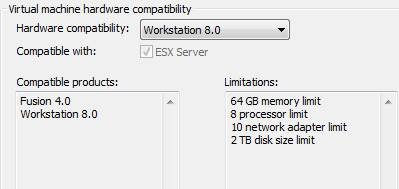
1. Create a New VM with version 8 hardware

clip_image002

2. Give it 4 GB RAM and 2 x vCPUs with about 80-100 GB disk space, depending upon how many VMs you wanted nested underneath Hyper-V.

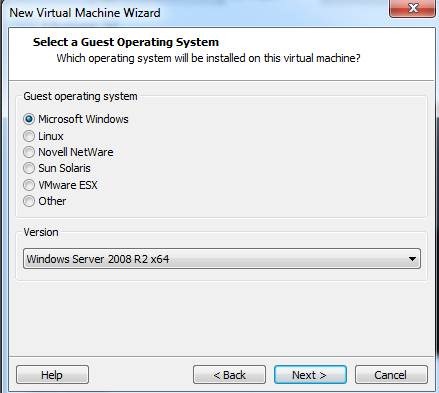
3. The instructions lead you to believe that you should pick a VMware ESX option as the guest OS… STOP! DON’T! Select Windows 2008 R2 x64.

clip_image004

4. When you are finished, make sure you add another NIC to the VM used as the Hyper-V virtual network,

5. Under the settings of the VM > CPU, make sure you have the option to pass-through the Intel VT-x/EPT feature.

clip_image006

6. Make sure you have set the VM to boot from Windows 2008 R2 x64 media ISO.

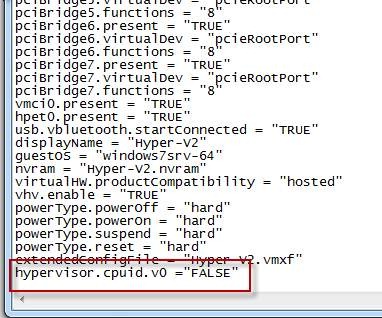
7. Before booting, you should edit the config file .vmx and add the parameter: hypervisor.cpuid.v0 = “FALSE”

clip_image008

8. Now Boot and Install Windows 2008 R2 x64.

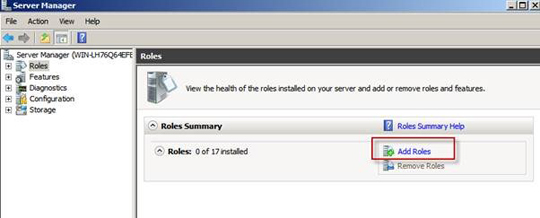
9. Once finished, open up Server Manager and click “Add Role”.

clip_image010

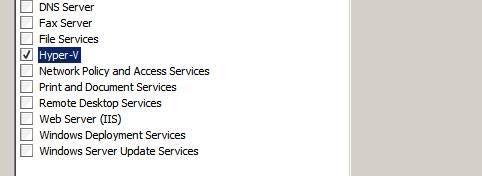
10. Select and install the Hyper-V option. At this point, you will know if your system is working correctly and passing the Intel EPT feature, because if it doesn’t, you won’t be able to go past this point.

clip_image012

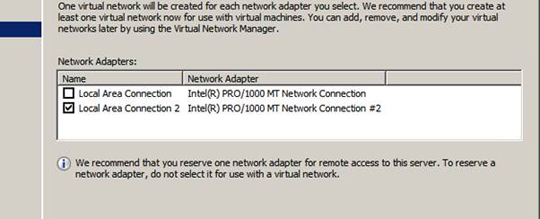
11. You’ll also have to select the network adapter used for the virtual network.

clip_image014

12. Now install Hyper-V, which will need a reboot.

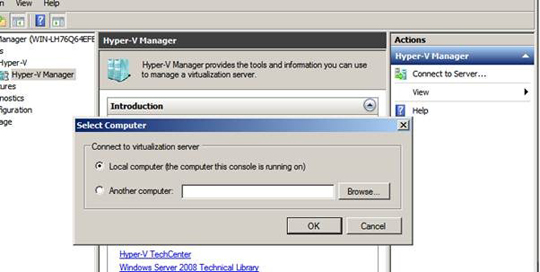
13. After it is completed, open Server Manager drill down to Hyper-V and connect to the local server.

clip_image016

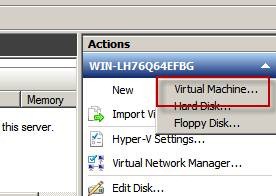
14. Now create and install a virtual machine.

clip_image018

Once done, you should be able to use it as normal, albeit slow.

Nesting Hyper-VM running ESXi 5

Now, doing the same thing on ESXi 5 is a little trickier although some of the steps are the same.

1. Before anything you need to place an entry in the /etc/vmware/config file found in the tech support mode on your ESXi 5. I enabled SSH through the security profile in the vSphere Client. Then used putty SSH into the ESXi system.

2. From there I executed the following command which is needed to allow nested hypervisors :

# echo 'vhv.allow = "TRUE" ' >> /etc/vmware/config

Notice the use of single and double quotes in the command-line

3. Now create a virtual machine using version 8 hardware, 4GB (or as much as you can spare), 2 x vCPUs, 2 or more vNICs and a 100GB virtual disk.

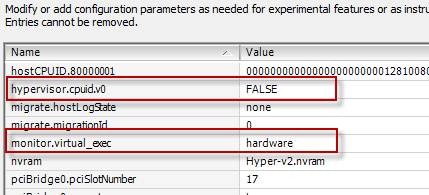
4. Before booting up the VM and installing Hyper-V we need to add two lines the virtual machines config file .vmx

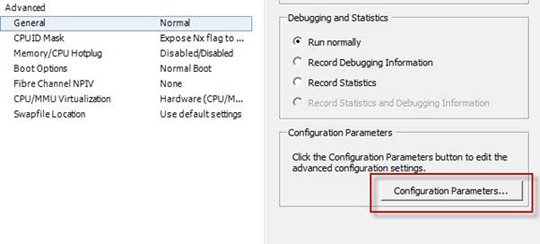
You can try this through the vSphere Client in the settings of the virtual machine > Configuration Parameters, whereas I had better luck doing it from command-line

clip_image020

clip_image022

To add them using command-line move back in SSH > change into the directory where you Hyper-V VM is installed

# echo 'vhv.allow = "TRUE" ' >> /etc/vmware/config

In my example the config file is called Hyper-V.vmx. Type the following commands:

# echo 'monitor.virtual_exec = "hardware" ' >> Hyper-V.vmx
# echo 'hypervisor.cpuid.v0 = "FALSE" ' >> Hyper-V.vmx

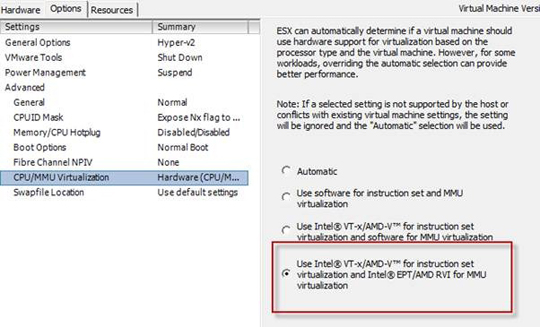
5. Now back in the VM settings > Options > CPU/MMU Virtualization make sure you have the option to pass the Intel EPT feature.

clip_image024

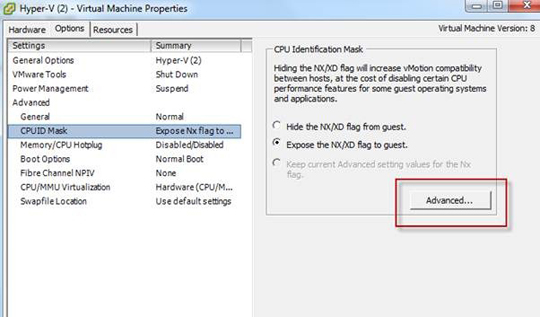
6. Now in the Options area > CPUID Mask click on Advanced

clip_image026

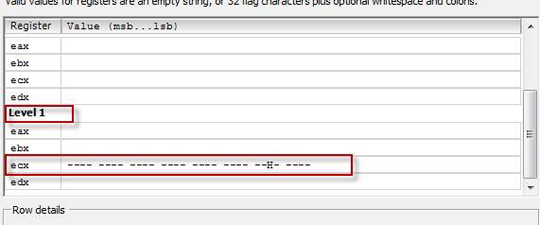
7. Add the following CPU mask Level ECX: —- —- —- —- —- —- —H- —-

clip_image028

8. Now Install Hyper-V or Windows 2008 R2 and enable the Hyper-V role.

9. You are ready to roll.

Gotchas/Tips

Here are a few tips from Ricky to avoid any of the stopping points along the way:

  • On my system part way through install of Microsoft Hyper-V the OS requires a reboot. When you do this after Hyper-V has been installed it blue screens…DON’T PANIC because it doesn’t blue screen while actually using Hyper-V
  • With both my server and laptop I had no way of telling if my systems had Intel EPT it was a case of seeing if VMware passed Intel EPT without complaining and if Hyper-V spotted it. The give a way for me was when I’d tried VMware Workstation first and it worked straight off. I’ve read a million and 1 things about this subject, but my gut feeling is if you look for Nehalem or Core i7 and a motherboard that supports Intel VT. I think that is a safe bet. I read you need Intel VT –x2 which I don’t have (I don’t think) so that was misleading…If I can narrow the field of information I will update this post.
  • Remember nesting a hypervisor means it’s going to run very, very slow…however installing the nested hypervisor in a datastore that is on SSD disks helps big time.
  • The 2 blogs linked above presented 2 methods for creating the VM using version 4/7 hardware or version 8 hardware. I first went with version 8 hardware and no joy at all. All I got was a blank black screen. I actually tried a combination of the tweaks in both methods and that is what worked for me.
  • The port group that the nested Hyper-V machine resides on should be set to Promiscuous Mode: Accept
  • In one of the blogs there was a note suggesting making the entries manually in the config files (instead of using the GUI) was more stable. I found this too, so hence why I changed the config files in a shell session using putty.
  • www.veeam.com
Рубрика: *, *Windows, Hyper-V | Оставить комментарий

Hyper-V Integration Services Requires a newer version of Windows Vista

Hyper-V Integration Services Requires a newer version of Windows Vista

Once you install your Windows Vista guest OS, you will want to install the integration services by going up to Action in the Virtual Machine Connection, and down to Insert Integration Services Setup Disk (as seen in Figure 1 below).

Figure 1: Inserting the integration services setup disk

It is likely that the autorun for the Integration services disk will start the install automatically. If not, you can manually start the installation from the virtual CD. Either way, the error that you will see is this:

error: Hyper-V Integration Services requires a newer version of Windows (as seen in Figure 2)

Figure 2: Hyper-V Integration Services Requires a newer version of Windows

The error message is frustrating for a few reasons:

You just installed a new OS (Microsoft’s latest desktop OS) and this is telling you that it is unsupported.

You just installed a fresh version of Vista and it is saying that a “newer version of Windows” is required (you might be asking “does Microsoft have a newer desktop OS than Vista”?)

I will tell you in advance that the fix for this issue is not as easy as you might think.

In reality, the desktop OS you installed IS supported. Vista is a supported OS. When it says that “a newer version of Windows is required”, that is somewhat true. You do not need a newer version of Windows Vista. What you need is to patch & update the version that you have.

So how do you get the patches downloaded so that they can be applied to your Windows Vista guest OS? Well, you download them from the network or over the Internet, right?

However, you have a problem. You cannot connect to the Internet because no network driver for the default virtual NIC is available. You can see the NIC disconnected in Figure 3, below.

Figure 3: Vista virtual guest OS NIC not available due to no driver being available

What do you do to get the needed patches to your Vista OS? Use a virtual floppy? No, the 200+MB Vista SP1 download is not going to fit on a 1.44MB virtual floppy disk by any means. You could also obtain a copy of Windows Vista with SP1 already slipstreamed in the install and reinstall. But you just finished installing your OS, you should not have to install it again.

The answer is to add the legacy network adaptor for your Virtual Guest OS. This is a different type of NIC that is supported by the Guest OS without drivers. This will allow you to connect to the network to get what you need. However, you cannot add the legacy NIC while the VM is powered on. For fun, you can try by going to the Hyper-V Manager and clicking on Settings for that Vista VM (as in Figure 4 and 5, below).

Figure 4: Adding the legacy virtual network adaptor

Figure 5: Cannot add the legacy virtual network adaptor

To solve this one, power off the Vista virtual guest.

Once that is done, you can then add the legacy network adaptor, as you attempted to do in Figures 4 & 5 (and are now shown in Figure 6 & 7). Once added, you will connect it to a physical network adaptor on the host system.

Figure 6: Adding the Legacy Virtual network adaptor

Figure 7: Connecting the virtual network adaptor to a real physical adaptor on the host

Now, power on (Start) the virtual guest OS (below).

Figure 8: Starting a Virtual Guest OS in Hyper-V

Once the virtual guest is booted, you will see the legacy network adaptor was added (as you see in Figure 9).

Figure 9: New Windows Integration Services Legacy network adaptor was added

At this point, if you try the integration services application again, it will again tell you that you still need a newer version of windows. However, now that you have the legacy network adaptor, you can access the Internet to download updates.

You will need at least Windows Vista SP1. You have a couple of options to get this. You can search the Internet for the download and manually download the installation. Or, you can use Windows Update to download and install it. To search the Internet for a download you can Google “windows vista sp1”.

Alternatively, you can use Windows Update. That may take a few passes of downloading, installing, rebooting, waiting for new updates, and repeating the process. Still, it is a good option. In fact, you may already see Windows Update popping up in the bottom right of your screen telling you that new updates are available for this virtual guest Vista OS. If you click on them, you will see something like Figure 10.

Figure 10: Important Updates available for Windows Vista

In my case, Figure 11 shows that Windows Vista SP1 is available. Let’s select to install SP1.

Figure 11: Windows Vista SP1 available from Windows Update

No matter how you obtain and install it, once initiated, the Vista SP1 installation proceeds as in Figures 12 & 13.One or more reboots may be required.

Figure 12: Installation of Windows Vista SP1

Figure 13: Confirm that you want to Install Windows Vista SP1

Once Windows Vista SP1 installation (and potential other patches that you install through Windows Update) are complete and your Windows Vista Guest OS has rebooted, you can then initiate the insert integration services disk command from the Hyper-V Manager Actions menu.

As soon as you do and the autorun of the integration services disk starts, you will see the window shown in Figure 14.

Figure 14: Hyper-V Integration Services Installation

Once the Hyper-V Integration Services installation has completed, you will see the window shown in Figure 15.

Figure 15: Hyper-V Integration Services installation has completed and you need to reboot

After answering yes to the question in Figure 16 and rebooting your system, the Hyper-V integration services installation for Windows Vista will be complete!

I recommend shutting down the Vista virtual Guest OS and removing the legacy network adaptor, then starting the Vista guest up again.
www.virtualizationadmin.com

Рубрика: Hyper-V | Оставить комментарий